Audacity vs an AI Vocal Remover: Which One Fits Your Song?
How Audacity's Vocal Reduction and Isolation works, what it does to bass, kick and stereo width, how the OpenVINO plugin changes things, and when an online AI separator makes more sense.
5 min read
Audacity is free, runs offline and has been around for a long time, so it is the first thing many people try when they want to take the vocals out of a song. Whether it is enough depends on the song and on what you need the result for. This guide covers the classic Audacity effect, the newer AI plugin route inside Audacity, and an online AI separator, and ends with a table for picking between them.
How Audacity's Vocal Reduction and Isolation works
The classic tool is the Vocal Reduction and Isolation effect. According to the Audacity manual, it stopped shipping with Audacity from version 3.5.0 onward. It is still available as a downloadable Nyquist plugin from the Muse support site, and once installed it appears under Effect > Special > Vocal Reduction and Isolation.
To use it:
- Import a stereo copy of the song. The manual is clear that the input must be true stereo; a mono file or a dual-mono file gives the effect nothing to work with.
- Select the whole track and open the effect.
- Run the Analyze action first. It reports how similar the two channels are and how likely removal is to work. The manual says a correlation of around +50 is normally ideal, and that a value near 0 means removal is pointless.
- Pick an action. "Remove Vocals: to mono" is the default. "Remove Vocals" does the same job but keeps a stereo output.
- Leave Low Cut at its 120 Hz default to start. Frequencies below it are left alone, which protects some of the bass and kick drum. High Cut keeps cymbals and hi-hats above it out of the cancellation.
- Preview, adjust, and apply.
The effect does not know what a voice is. It cancels whatever is panned to the center of the stereo image. That works on songs where the singer is dead center and almost nothing else is. Most modern mixes put a lot more in the middle.
What the classic method does to your track
Center cancellation removes everything that is the same in both channels, within the frequency band you choose. In practice that has a few predictable side effects.
Bass and kick drum are usually centered. With the full-spectrum "Remove Center" actions, they go along with the voice. With the "Remove Vocals" actions, the Low Cut setting keeps the lowest frequencies, but the part of the bass and kick that sits above 120 Hz, the snare, and any centered lead instrument can still be thinned out. The manual puts it plainly: everything in the center is removed equally, whether vocals, bass or solo instruments.
The default output is mono. "Remove Vocals: to mono" and "Remove Center: to mono" return dual mono, so the left-right spread of the original mix is gone. The other Remove actions keep a stereo image but are slower.
Reverb stays behind. Stereo reverb is spread across the whole stereo field, so the manual notes it will not be fully removed. On a ballad with a lot of vocal reverb, you often hear a faint, washed-out ghost of the singer.
Backing vocals panned left and right also survive, because they are not in the center.
On older recordings with a dry, centered vocal and wide instruments, the effect can still produce a usable karaoke track in seconds.
The OpenVINO AI plugins for Audacity
Intel publishes a free set of OpenVINO AI plugins for Audacity. The Audacity manual itself points to them as the better option. Their Music Separation effect uses Meta's Demucs v4 model to split a mono or stereo track into drums, bass, vocals and other instruments, and it runs entirely on your own computer.
The catch is setup. The project offers installation packages for Windows. For Linux there are build instructions rather than a ready installer, and there are no macOS instructions in the project's README. Separation runs on your CPU, GPU or NPU, so speed depends on your hardware. If you are on a Windows PC and comfortable installing plugins, this route gives you AI separation and more stems than a two-track tool, for free and offline.
The online AI route
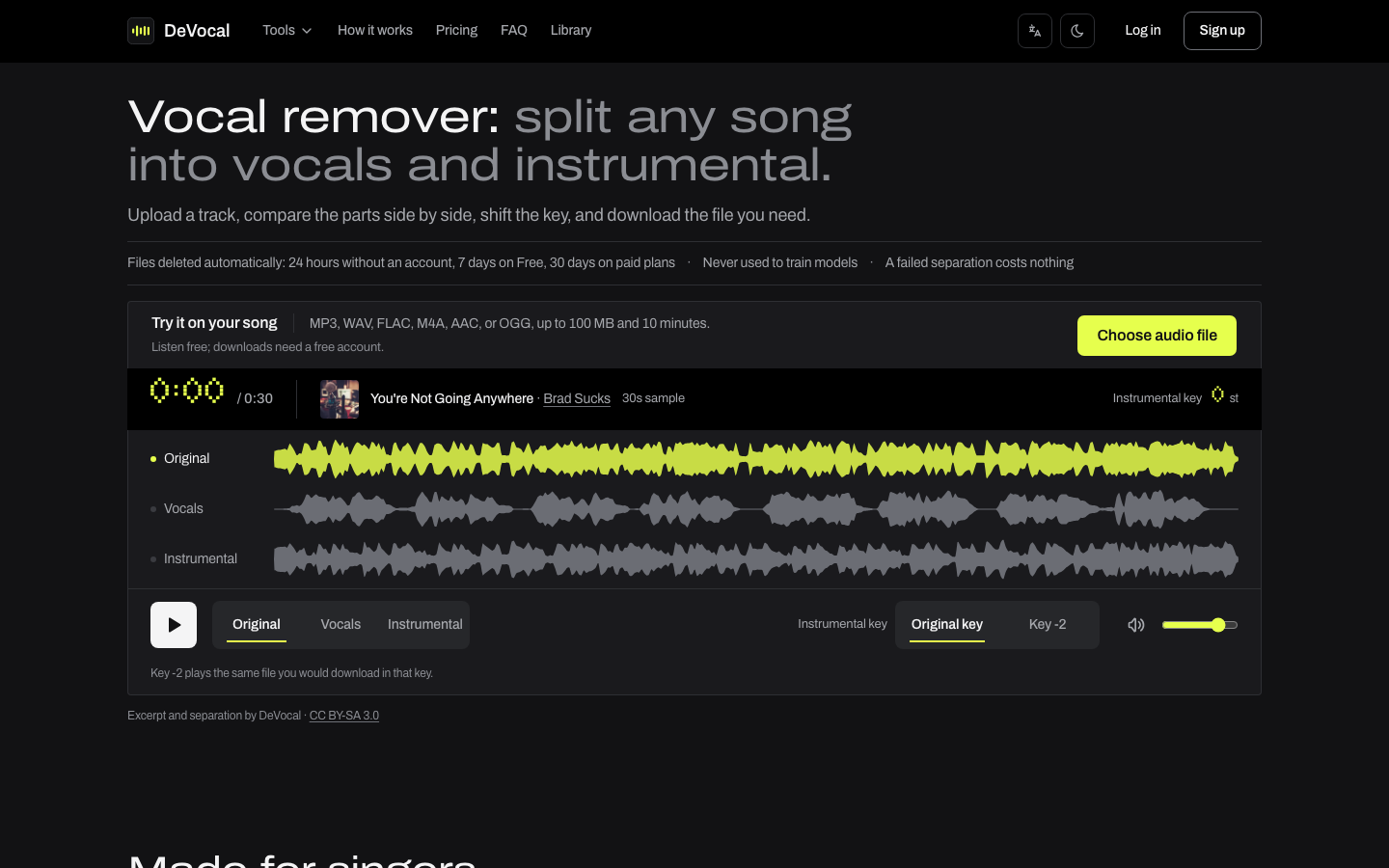
An online separator such as DeVocal skips installation. You upload an audio file in the browser and get two tracks back: the vocals and the instrumental. Like the OpenVINO plugin, it works from how the voice sounds rather than where it sits in the stereo field, so a bass line is not cancelled just for being in the middle. The trade-offs:
- You only get two tracks. Drums, bass and keys stay together in the instrumental.
- You need the file itself. There is no YouTube or link import.
- The free plan is 2 separations a month, songs up to 10 minutes, and downloading the MP3 needs a free account. Starter is $4.99 a month for 20 separations and Pro is $9.99 a month for 50, with songs up to 20 minutes and WAV downloads.
- You can shift the instrumental from -6 to +6 semitones when you download it, without using another separation. The player on the results page plays the original key.
- Files are deleted automatically after your plan's retention period and are not used to train models.
Some vocal traces can still remain, especially reverb tails and stacked harmonies in dense choruses. Results depend on the recording.
Run an A/B test on your own song
The fairest way to choose is to try both on the song you care about. Pick a 30-second section that includes a chorus, since that is where differences show up.
- In Audacity, run Analyze, then "Remove Vocals" with default settings, and export the result.
- Upload the same file to the remove vocals tool. On the results page, switch between Original, Vocals and Instrumental at the same point in the song.
- Play both instrumentals through the speakers or headphones you will actually use.
Listen for the kick drum and bass, any leftover voice in the chorus, and whether the track still sounds wide or has collapsed toward the middle. If the Audacity version is good enough for your use, keep it. It cost nothing and nothing left your computer.
Which one to use
| Your situation | Try first | Why |
|---|---|---|
| Older song, dry vocal in the center, wide instruments | Audacity Vocal Reduction | Center cancellation works best on this kind of mix |
| Bass-heavy pop, hip-hop or EDM | AI separation | Centered bass and kick are what the classic method removes |
| Ballad with lots of vocal reverb | AI separation, then check the tails | Center cancellation leaves stereo reverb behind |
| You need drums or bass as separate tracks | OpenVINO plugin | It splits into four stems; DeVocal gives two |
| Must stay offline, Windows PC | OpenVINO plugin | Runs locally after setup |
| Must stay offline, Mac | Audacity Vocal Reduction | The OpenVINO project lists no macOS install |
| Karaoke in a lower or higher key | DeVocal, or Audacity's Change Pitch afterwards | DeVocal shifts -6 to +6 semitones at download |
| Many songs a month | Compare plan limits | DeVocal free is 2 a month; Audacity has no limit |
Audacity costs nothing, works offline and has no monthly limit. An AI separator handles mixes with a lot going on in the center, at the cost of an upload and, past two songs a month, a subscription.
Related guides
- Remove vocals without losing quality: why source quality and mix density matter more than the tool.
- Isolate vocals for remixing: cleaning up an acapella once you have one.
- Make a backing track for a performance: from source file to sound check.
- Karaoke maker: download the instrumental in your key.